> ## Documentation Index
> Fetch the complete documentation index at: https://docs.runflow.io/llms.txt
> Use this file to discover all available pages before exploring further.
# Deploy a ComfyUI workflow
> Install the ComfyUI-Runflow custom-node plugin, add a Deploy node, click Deploy. Your workflow becomes a callable Runflow API.
**Beta.** ComfyUI Deploy is in public beta. The plugin, API surface, and pricing rate cards are stable but may evolve. Expect breaking changes to be called out in [the changelog](https://github.com/runflow-io/ComfyUI-Runflow/releases) before they ship.
[`ComfyUI-Runflow`](https://github.com/runflow-io/ComfyUI-Runflow) is a custom-node plugin that publishes a ComfyUI workflow to Runflow as a callable API. The plugin captures the workflow graph, the runtime manifest (ComfyUI commit, custom-node commits, package versions, cached models), and uploads it on a single click. The deployed workflow gets a playground in the Runflow dashboard and a stable API surface invocable with any Runflow key that has the right scopes.
Two things to internalize before you click Deploy on anything you did not author:
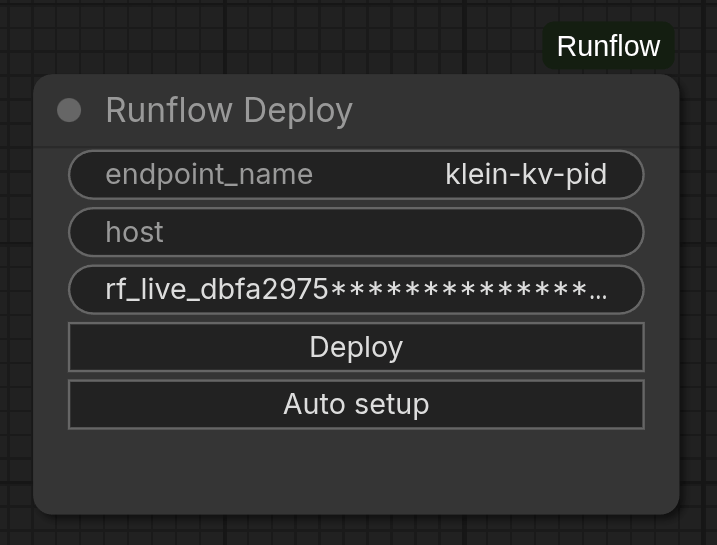
1. **Never type your API key into the Deploy node's `api_key` widget.** ComfyUI persists widget values into the workflow JSON, so a key entered on the node travels with every export, screenshot, paste, and bug-report attachment. Configure the key under **Settings → Runflow → Connection** instead; that storage is local to your machine and never serialized into a workflow file. The same caution applies to the Deploy node's `host` widget. A workflow you load from a stranger can pre-populate `host` to send your key to their server when you click Deploy. **Before clicking Deploy on any imported workflow, clear both `host` and `api_key` on the Deploy node** (or delete and recreate the node so the widgets reset to empty).
2. **Auto setup runs `git clone` and `pip install` from URLs declared by the loaded workflow.** Treat it like any other untrusted shell script: only click Auto setup for workflows from sources you trust. A hostile workflow can use the button to execute arbitrary code on your machine.
## What you'll do
Three steps: install the plugin, configure your key under Settings, click Deploy. The optional Runflow Input / Output nodes give the deployed API a clean schema.
## Video walkthrough
End-to-end walkthrough of everything below (install, configure, deploy, call):
## Prerequisites
* A working ComfyUI install.
* A Runflow API key. [Create one](https://app.runflow.io/settings/api-keys) with the scopes below.
* `python`, `pip`, and `git` on `PATH` (used by the optional Auto setup feature).
### Key scopes, by what you actually do
| Doing | Scopes |
| ----------------------------------------------------------- | ----------------------------------------------------- |
| Publish a brand-new endpoint, never update from this client | `comfyui-workflows:read` + `comfyui-workflows:create` |
| Iterate (redeploy to the same slug from this client) | add `comfyui-workflows:edit` |
| Remove workflows from this client | add `comfyui-workflows:delete` |
The Deploy button uses `read` to detect existing slugs and either `create` (new) or `edit` (replace) accordingly. `edit` is broad: it lets the key replace the graph of any existing endpoint owned by the org without changing the slug. If the key leaks, an attacker holding `edit` can silently swap a production workflow's graph. Issue the narrowest scope set you actually need and rotate on any suspicion of leak.
The plugin sends `Authorization: Bearer ` and lets the API derive your organization from the key. No organization id is needed.
## Step 1: install the plugin
Clone the plugin into your ComfyUI `custom_nodes/` directory and restart ComfyUI. `$COMFYUI_DIR` below is your ComfyUI install root (the folder that contains `main.py`, `custom_nodes/`, `models/`, etc.):
```bash theme={"dark"}
cd "$COMFYUI_DIR/custom_nodes"
git clone https://github.com/runflow-io/ComfyUI-Runflow.git
# or, for development against a checkout you already have:
# ln -s /path/to/ComfyUI-Runflow ComfyUI-Runflow
```
Restart ComfyUI (a UI refresh is not enough; the Python process has to re-exec). After the restart you'll see a new **Runflow** category in the node picker.
The plugin is at `1.0.0` on `main` HEAD; no version tags are published yet. Pin the commit SHA after `clone` if you need a hard guarantee against future renames of node classes, widgets, or settings.
## Step 2: configure your account
Open ComfyUI **Settings → Runflow → Connection** and fill in:
| Setting | Default | What it is |
| ---------------- | ------------------------ | ----------------------------------------------------------------- |
| `Runflow.ApiUrl` | `https://api.runflow.io` | API base URL. Override only when running against a staging stack. |
| `Runflow.ApiKey` | *(empty)* | The Runflow API key from above. |
Settings persist locally on your machine; they are not written into any workflow file. **Do this once and forget the per-node widgets exist.** The Runflow tab holds more than these connection fields; see [The Runflow settings panel](#the-runflow-settings-panel) for the full reference, including the security controls.
The Deploy node also exposes `host` and `api_key` widgets, but, as called out at the top of this page, those values are persisted into the workflow JSON and travel with every export. The widgets are there for ephemeral multi-account testing on a machine you control; for normal use, leave them empty and rely on the global Settings.
## Step 3: deploy
Add a **Runflow Deploy** node (under the **Runflow** category) and set its `endpoint_name` widget. The default is `default`; rename it before clicking Deploy or you'll publish to a slug literally called `default`. The slug is derived from this name: lowercased, with whitespace mapped to `-`, and anything outside `a-z`, `0-9`, `-`, `_` stripped. So `Background Removal v2.1` becomes `background-removal-v21` (the `.` is silently dropped); pick a name without surprises.
Click **Deploy**. The button flashes **Deployed ✓** on success. On failure the plugin shows a browser `alert()` with the underlying error (missing API key, missing scopes, slug validation, HTTP failure, etc.) and the button returns to **Deploy**. The HTTP response is the terminal state; there is no separate deployment job to poll.
On success, open the workflow in [`app.runflow.io`](https://app.runflow.io), test it in the playground, inspect the graph the platform recorded, and adjust any settings exposed by your Runflow Input nodes.
## Call the deployed workflow
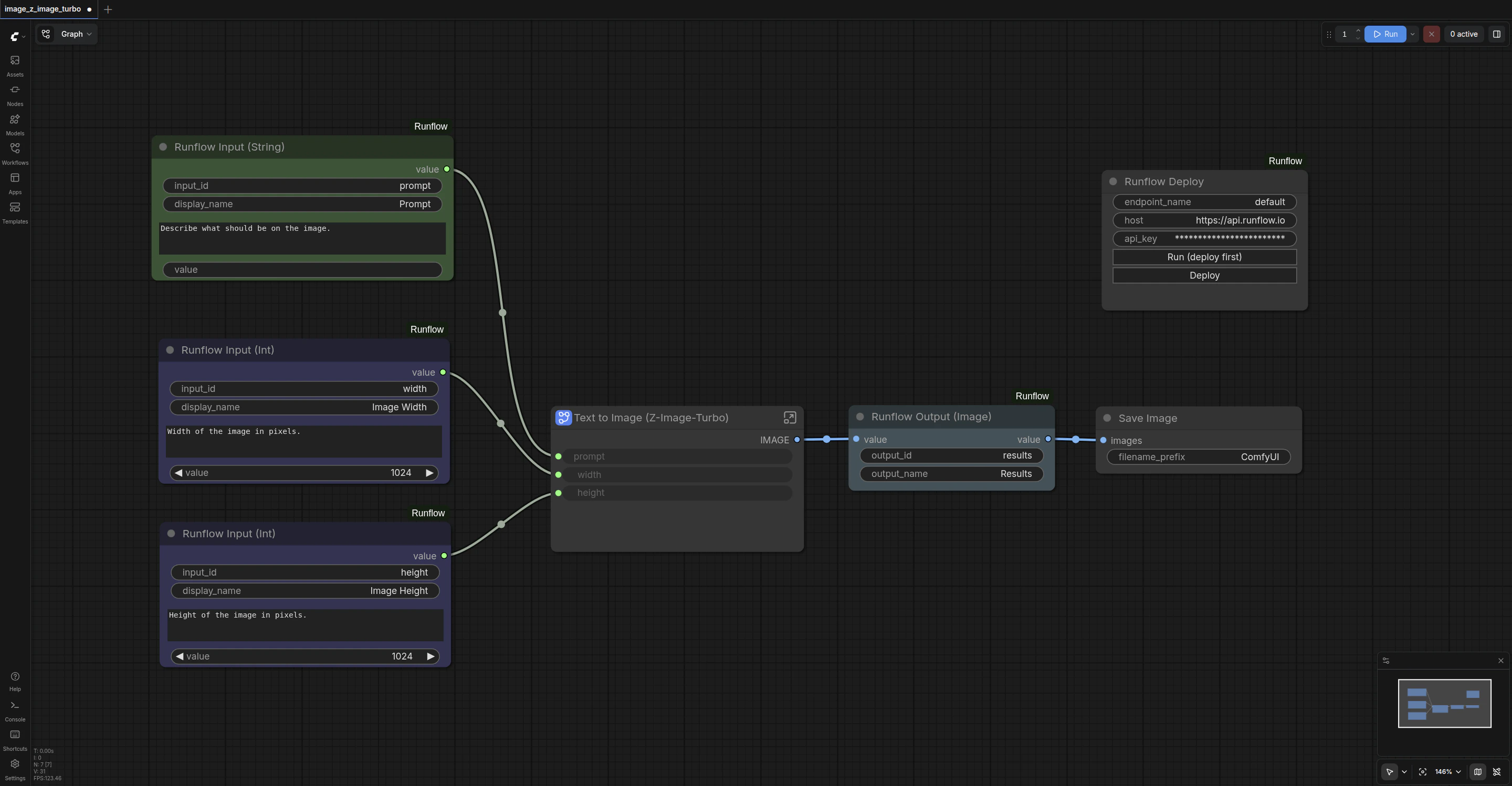
Dispatch a run against your workflow's canonical `your-org/your-endpoint` path, where `your-org` is your organization slug (visible at the top of the dashboard, derived from the API key) and `your-endpoint` is what `endpoint_name` slugified to. The request body uses the same shape as a model run. The example below assumes a workflow with three Runflow Input nodes (`input_id` set to `prompt`, `width`, `height`); replace those keys with whatever `input_id` you set on your own input nodes.
```
curl -X POST https://api.runflow.io/v1/comfyui-workflows/your-org/your-endpoint/runs \
-H "Authorization: Bearer $RUNFLOW_API_KEY" \
-H "Content-Type: application/json" \
-d '{
"input": {
"prompt": "a sea otter holding a smooth pebble, studio photography",
"width": 1024,
"height": 1024
},
"callback_url": "https://your-server.com/webhook"
}'
```
Omit `callback_url` to poll [`GET /v1/runs/{id}`](/concepts/runs) instead. See [Runs](/concepts/runs) for the lifecycle, [Callbacks](/concepts/callbacks) + [Verify callback signatures](/guides/verify-callback-signatures) for the async pattern, and the [JavaScript SDK guide](/guides/javascript-sdk) for a typed client. Invocations bill against the calling key like any other model run.
### What you get back
The completed run's `output` carries `kind: "comfyui_outputs"` and an `outputs` array — one entry per emitted artifact file, each labeled by the `output_id` of the Runflow Output node that produced it. A node that emits several files (a batch) yields several entries sharing one `output_id`:
```json theme={"dark"}
{
"id": "01J0...",
"status_code": "succeeded",
"output": {
"kind": "comfyui_outputs",
"outputs": [
{
"output_id": "image",
"url": "https://...",
"content_type": "image/png",
"size_bytes": 1048576
},
{
"output_id": "image",
"url": "https://...",
"content_type": "image/png",
"size_bytes": 1041923
}
]
}
}
```
Each entry's `url` is presigned and time-limited. Iterate the whole array — group by `output_id` when you need per-node outputs — and download or re-upload outputs to your own storage on receipt.
## Billing & GPU pricing
Deployed ComfyUI workflows bill per **second of GPU wall-time**: from the moment the worker boots the container for your run to the moment it returns the result. Idle workers cost nothing (the platform scales to zero between runs); cold starts on a new GPU type are billed alongside the run.
### What you pay per second
Rates are per GPU second and depend on which GPU your run lands on. The current authoritative rate card lives at [runflow.io/pricing](https://www.runflow.io/pricing); check there before sizing a budget. Rates apply uniformly across runs from any caller (your API key, the playground, embedded Studio). To estimate a specific workflow, run it once and read the cost and GPU seconds back from the run record (see [What the run record shows](#what-the-run-record-shows)).
### Picking a GPU
GPU selection is set on the **workflow**, not per run. Each ComfyUI workflow carries a `gpu_mode` of either:
* **`auto`** (default): the platform routes each run to the cheapest GPU that fits the workflow's memory footprint. Use this unless you have a specific reason.
* **`explicit`**: the workflow is pinned to a chosen set of GPU models in `gpu_explicit_models[]`. Use this when a workflow needs guaranteed VRAM or a known fast path.
Switch `gpu_mode` via `PATCH /v1/comfyui-workflows/{id}` (workflow owner only); changing the specific GPU set an explicit workflow is pinned to is done by redeploying. Once a workflow is explicit, every run uses that GPU set regardless of caller.
### Scale-to-zero behavior
The platform keeps a deployed workflow's worker warm only while runs are arriving. After a short idle window the worker spins down and the next run pays a cold-start cost (typically 10-40s of GPU time depending on the model weights). For latency-sensitive workloads, send a warming run on a schedule, or keep the playground open during a session.
### What the run record shows
`GET /v1/runs/{id}` returns billing metrics for completed ComfyUI runs (GPU model used and GPU seconds consumed). The webhook delivery payload does not carry them — it has the run's `status`, `output`, and `duration_ms` — so read cost and GPU seconds from `GET /v1/runs/{id}`. To attribute spend per pipeline, set a `metadata` object at run creation; it is echoed back on both the webhook and the run record.
## Define the external schema with Runflow Input / Output nodes
The plugin ships typed input and output nodes that declare the deployed API surface. Wire them into your workflow; everything else stays an internal implementation detail.
The node classes available today, grouped by category in the node picker:
| Node | Class | Category | Default `input_id` / `output_id` | Purpose |
| ------------------------- | --------------------- | ---------------- | -------------------------------- | ---------------------------------------------------------------------------------------------------------------------------------- |
| `Runflow Input (String)` | `RunflowInputString` | `Runflow/Input` | `string_input` | String field on the deployed API. |
| `Runflow Input (Int)` | `RunflowInputInt` | `Runflow/Input` | `int_input` | Integer field. |
| `Runflow Input (Float)` | `RunflowInputFloat` | `Runflow/Input` | `float_input` | Floating-point field. |
| `Runflow Input (Boolean)` | `RunflowInputBoolean` | `Runflow/Input` | `boolean_input` | Boolean field. |
| `Runflow Input (Image)` | `RunflowInputImage` | `Runflow/Input` | `image_input` | Image input; callers send a URL or upload an asset. |
| `Runflow Input (File)` | `RunflowInputFile` | `Runflow/Input` | `file_input` | File input (a filename string in the graph); callers send a URL or upload an asset of any type. |
| `Runflow Output (Image)` | `RunflowOutputImage` | `Runflow/Output` | `image_output` | Names an IMAGE output. Each image in the batch is saved as PNG and returned. |
| `Runflow Output (File)` | `RunflowOutputFile` | `Runflow/Output` | `file_output` | Names a file output (video, 3D mesh, audio, archive) already written under ComfyUI's `output/` directory by an upstream save node. |
Each input has three widgets: `input_id` (the stable join key the deployed API uses; never mutated at deploy time), `display_name` (label shown in the playground), `description` (help text). Each output has `output_id` and `output_name`; `Runflow Output (File)` additionally takes the file path on its forced `value` socket. **Change `input_id` and `output_id` to something meaningful in your workflow**; two inputs of the same type with the default ids will collide.
Locally these nodes are pure pass-throughs of the `value` socket. At deploy time, the Runflow inference service rewrites each input's upstream to inject the caller-supplied value and maps each output node id to its `output_id` so the callable API returns a stable, named set of artifacts.
### Encoder bridges
On a recent ComfyUI (one exposing the `comfy_api.latest` module), the plugin also registers a **`Runflow/Save`** family. Each one encodes a native ComfyUI socket to a file under `output/` and emits the relative filename on a STRING socket, ready to wire straight into a `Runflow Output (File)` node. On older installs these nodes are skipped at load with a single warning, and the rest of the plugin still works.
| Node | Input | Format |
| --------------------------- | ------------------- | ---------------------------------------------------- |
| `Runflow Save Audio (FLAC)` | AUDIO | FLAC, lossless. |
| `Runflow Save Audio (MP3)` | AUDIO | MP3, with a `quality` widget (`V0`, `128k`, `320k`). |
| `Runflow Save Audio (Opus)` | AUDIO | Opus, with a bitrate widget (`64k` to `320k`). |
| `Runflow Save Video (MP4)` | VIDEO | MP4 / H.264. |
| `Runflow Save Video (WEBM)` | IMAGE batch + `fps` | WebM / VP9 or AV1. |
## Auto setup
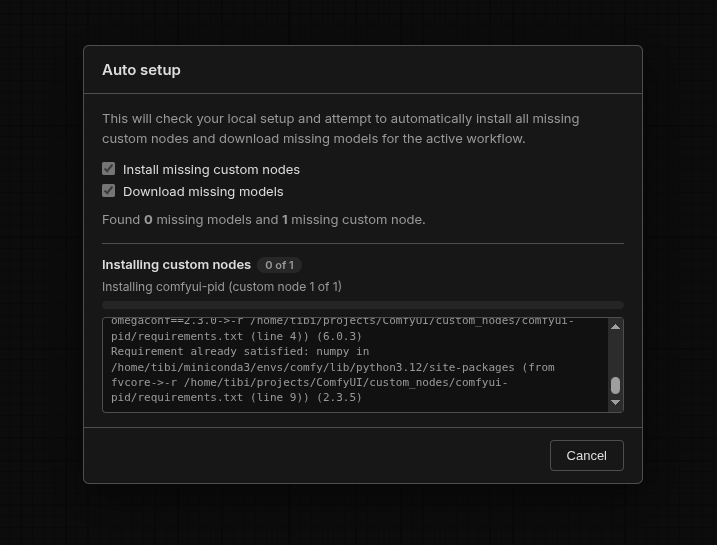
Directly below Deploy on the same node, the **Auto setup** button installs every custom node and downloads every model the active workflow references. Useful when you load someone else's workflow and want to skip chasing dependencies by hand. It is also the worst possible button to click on a workflow you do not trust (see the warning at the top of the page).
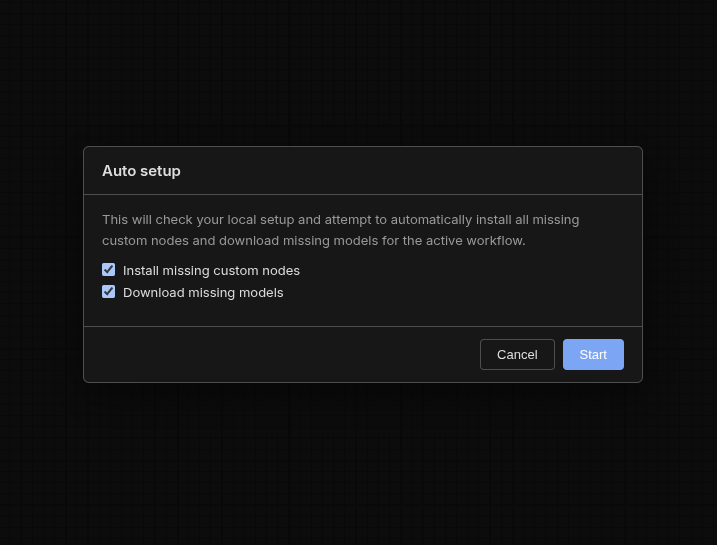
Clicking the button opens a modal with two checkboxes (*Install missing custom nodes*, *Download missing models*) and a Start button.
While the job runs, the modal shows a byte-progress bar for the current model download and a count-progress bar for custom-node installs; models and nodes install in parallel. When the job finishes, click **Restart ComfyUI** in the modal so the newly installed nodes register.
Auto setup uses `git clone --depth=1` plus `git fetch --depth=1 origin ` plus `git checkout ` (with a full-clone fallback if the host disables SHA-targeted fetches), then `python -m pip install -r requirements.txt` if the cloned repo carries one. Works on Linux, macOS, and Windows.
Workflows can also declare model-download URLs in `properties.models[].url`. The deploy worker fetches those server-side before running the workflow. A hostile URL there is a server-side problem the platform mitigates, but **review the URLs before deploying a community workflow**; the dashboard surfaces the recorded graph after deploy if you want to double-check.
## The Runflow settings panel
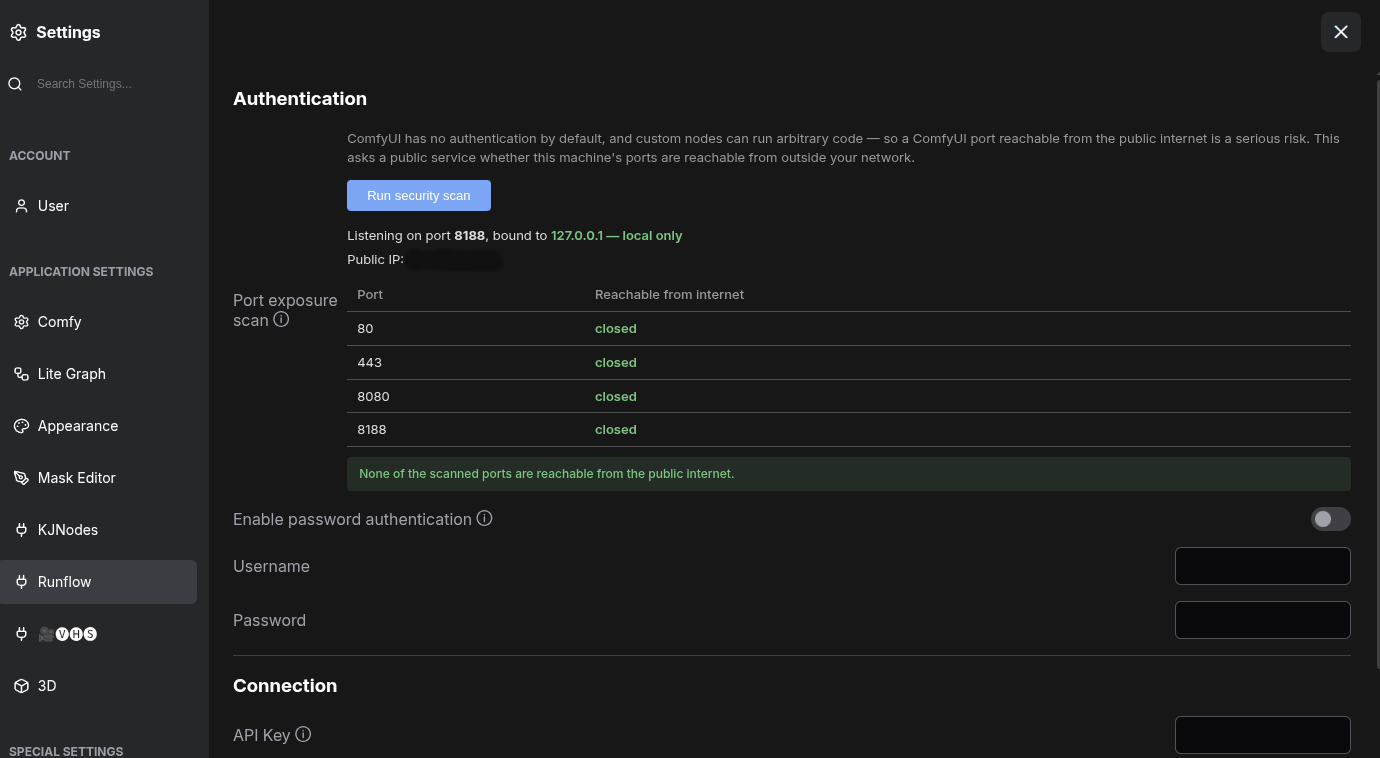
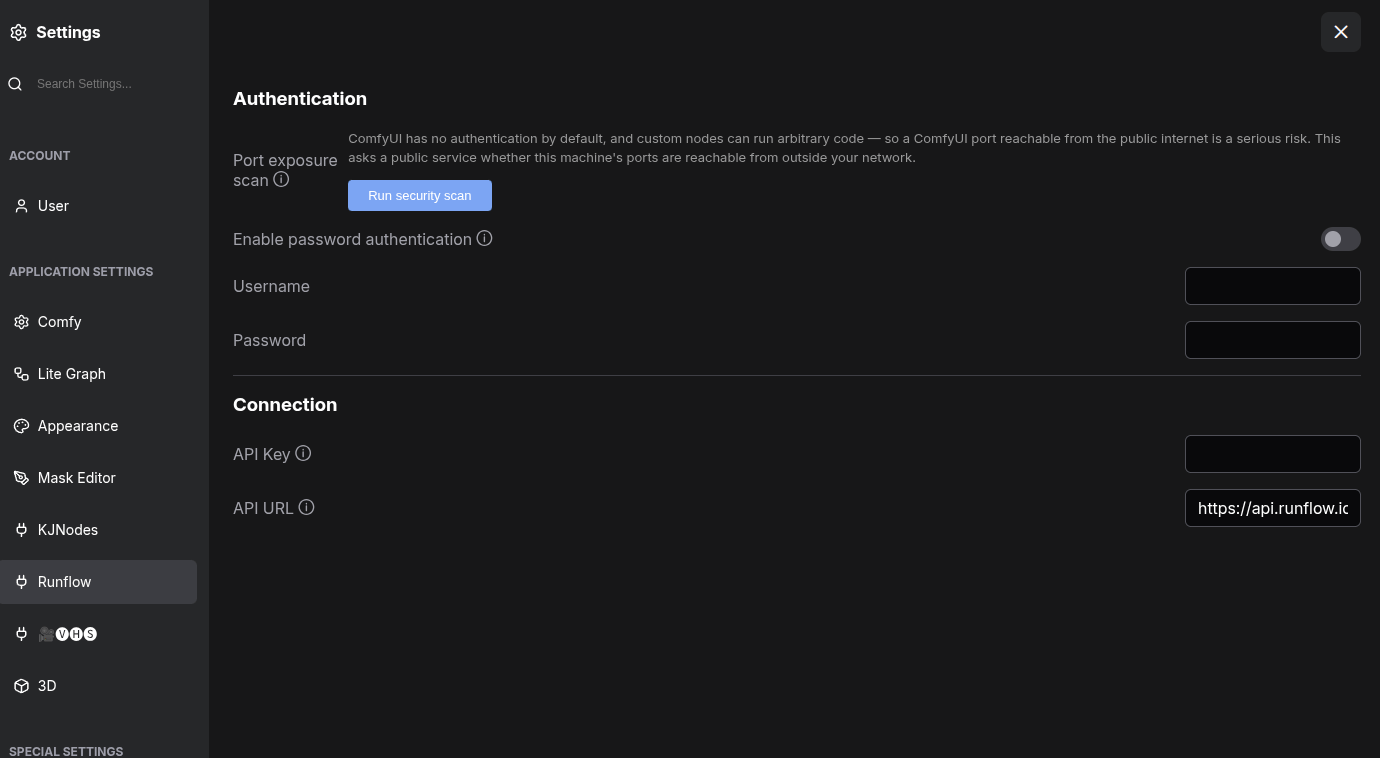
Everything the plugin stores on your machine lives under ComfyUI **Settings → Runflow**, split into two groups: **Connection** and **Authentication**. None of these values are ever written into a workflow file.
### Connection
The two fields the Deploy button reads, both covered in [Step 2](#step-2-configure-your-account):
| Setting | Default | What it is |
| ---------------------------- | ------------------------ | -------------------------------------------------------------------------- |
| `API Key` (`Runflow.ApiKey`) | *(empty)* | The `rf_live_*` key used when the Deploy node's `api_key` widget is empty. |
| `API URL` (`Runflow.ApiUrl`) | `https://api.runflow.io` | API base URL. Override only when running against a staging stack. |
### Authentication
ComfyUI ships **no authentication** by default, and custom nodes can run arbitrary code on the host. A ComfyUI port reachable from the public internet is therefore a serious risk: anyone who finds it can execute code on your machine. This group helps you detect and close that exposure.
| Setting | Default | What it is |
| -------------------------------- | --------- | --------------------------------------------------------------------------------------------------------------------------------- |
| `Enable password authentication` | *off* | Require HTTP Basic auth on **every** request to this ComfyUI server. Takes effect only once both a username and password are set. |
| `Username` / `Password` | *(empty)* | Credentials checked by the auth layer, stored in `runflow_security.json` next to your ComfyUI install. |
#### Port exposure scan
Click **Run security scan** to check whether this machine is reachable from outside your network:
1. It reports ComfyUI's **listen binding**, read locally from its `--listen` / `--port` args. Binding to `0.0.0.0` / `::` (all interfaces) is flagged in red; `127.0.0.1` (local only) is green.
2. It looks up your **public IP**, then asks the third-party service **portchecker.io** whether your ComfyUI port (plus `80`, `8080`, `443`) is reachable from the internet, showing each port as OPEN or closed.
The scan sends your public IP address to portchecker.io so it can probe you from the outside. No workflow data is sent. If a port shows OPEN (or you are bound to all interfaces), close the exposure: enable password authentication above, put ComfyUI behind a firewall or an authenticated reverse proxy, or bind to localhost only (start ComfyUI without `--listen`, or with `--listen 127.0.0.1`).
## Troubleshooting
* **No `Runflow` category in the node picker.** ComfyUI loaded before the plugin was on disk, the plugin landed in the wrong `custom_nodes/` directory, or you only refreshed the browser tab. Confirm the path, then fully restart the ComfyUI server process.
* **Clicking Deploy raises an alert about an unconfigured key or URL.** Either `Runflow.ApiKey` is blank in Settings (and the node's `api_key` widget is also blank), or `Runflow.ApiUrl` was cleared. Save the key under Settings and click Deploy again.
* **`Deploy` returns `401 Unauthorized`.** The key is missing or revoked. Reissue and re-save under Settings.
* **`Deploy` raises a `lookup failed` or `403 Forbidden` alert on redeploy.** Deploy first GETs the existing slug, then PATCHes it. A key with `comfyui-workflows:create` but no `:read` fails at the lookup with `lookup failed`; a key with `:read` but no `:edit` fails at the PATCH with `403`. Reissue with all three of `read`, `create`, `edit` for iterative deploys.
* **`Deploy` alerts that `endpoint_name` must be URL-safe.** The slug came out empty after stripping characters outside `a-z`, `0-9`, `-`, `_`. Pick a name with at least one allowed character.
* **A workflow that runs locally fails on Runflow.** Local-only models or custom nodes are not on the worker. Click **Auto setup** locally first to confirm the workflow resolves (only on workflows you trust). Models declared via `properties.models` URLs deploy without needing a local copy; widget-selected models must exist locally or carry a URL fallback.
* **The endpoint slug changed unexpectedly.** Renaming `endpoint_name` creates a new slug. To replace an existing endpoint, keep the same name and rely on `comfyui-workflows:edit`.
## Related
Decision tree from task to model.Lifecycle, polling, callbacks.HMAC verification for the callback you set above.Typed client for the deployed API.
 Click **Deploy**. The button flashes **Deployed ✓** on success. On failure the plugin shows a browser `alert()` with the underlying error (missing API key, missing scopes, slug validation, HTTP failure, etc.) and the button returns to **Deploy**. The HTTP response is the terminal state; there is no separate deployment job to poll.
On success, open the workflow in [`app.runflow.io`](https://app.runflow.io), test it in the playground, inspect the graph the platform recorded, and adjust any settings exposed by your Runflow Input nodes.
## Call the deployed workflow
Dispatch a run against your workflow's canonical `your-org/your-endpoint` path, where `your-org` is your organization slug (visible at the top of the dashboard, derived from the API key) and `your-endpoint` is what `endpoint_name` slugified to. The request body uses the same shape as a model run. The example below assumes a workflow with three Runflow Input nodes (`input_id` set to `prompt`, `width`, `height`); replace those keys with whatever `input_id` you set on your own input nodes.
```
curl -X POST https://api.runflow.io/v1/comfyui-workflows/your-org/your-endpoint/runs \
-H "Authorization: Bearer $RUNFLOW_API_KEY" \
-H "Content-Type: application/json" \
-d '{
"input": {
"prompt": "a sea otter holding a smooth pebble, studio photography",
"width": 1024,
"height": 1024
},
"callback_url": "https://your-server.com/webhook"
}'
```
Omit `callback_url` to poll [`GET /v1/runs/{id}`](/concepts/runs) instead. See [Runs](/concepts/runs) for the lifecycle, [Callbacks](/concepts/callbacks) + [Verify callback signatures](/guides/verify-callback-signatures) for the async pattern, and the [JavaScript SDK guide](/guides/javascript-sdk) for a typed client. Invocations bill against the calling key like any other model run.
### What you get back
The completed run's `output` carries `kind: "comfyui_outputs"` and an `outputs` array — one entry per emitted artifact file, each labeled by the `output_id` of the Runflow Output node that produced it. A node that emits several files (a batch) yields several entries sharing one `output_id`:
```json theme={"dark"}
{
"id": "01J0...",
"status_code": "succeeded",
"output": {
"kind": "comfyui_outputs",
"outputs": [
{
"output_id": "image",
"url": "https://...",
"content_type": "image/png",
"size_bytes": 1048576
},
{
"output_id": "image",
"url": "https://...",
"content_type": "image/png",
"size_bytes": 1041923
}
]
}
}
```
Each entry's `url` is presigned and time-limited. Iterate the whole array — group by `output_id` when you need per-node outputs — and download or re-upload outputs to your own storage on receipt.
## Billing & GPU pricing
Deployed ComfyUI workflows bill per **second of GPU wall-time**: from the moment the worker boots the container for your run to the moment it returns the result. Idle workers cost nothing (the platform scales to zero between runs); cold starts on a new GPU type are billed alongside the run.
### What you pay per second
Rates are per GPU second and depend on which GPU your run lands on. The current authoritative rate card lives at [runflow.io/pricing](https://www.runflow.io/pricing); check there before sizing a budget. Rates apply uniformly across runs from any caller (your API key, the playground, embedded Studio). To estimate a specific workflow, run it once and read the cost and GPU seconds back from the run record (see [What the run record shows](#what-the-run-record-shows)).
### Picking a GPU
GPU selection is set on the **workflow**, not per run. Each ComfyUI workflow carries a `gpu_mode` of either:
* **`auto`** (default): the platform routes each run to the cheapest GPU that fits the workflow's memory footprint. Use this unless you have a specific reason.
* **`explicit`**: the workflow is pinned to a chosen set of GPU models in `gpu_explicit_models[]`. Use this when a workflow needs guaranteed VRAM or a known fast path.
Switch `gpu_mode` via `PATCH /v1/comfyui-workflows/{id}` (workflow owner only); changing the specific GPU set an explicit workflow is pinned to is done by redeploying. Once a workflow is explicit, every run uses that GPU set regardless of caller.
### Scale-to-zero behavior
The platform keeps a deployed workflow's worker warm only while runs are arriving. After a short idle window the worker spins down and the next run pays a cold-start cost (typically 10-40s of GPU time depending on the model weights). For latency-sensitive workloads, send a warming run on a schedule, or keep the playground open during a session.
### What the run record shows
`GET /v1/runs/{id}` returns billing metrics for completed ComfyUI runs (GPU model used and GPU seconds consumed). The webhook delivery payload does not carry them — it has the run's `status`, `output`, and `duration_ms` — so read cost and GPU seconds from `GET /v1/runs/{id}`. To attribute spend per pipeline, set a `metadata` object at run creation; it is echoed back on both the webhook and the run record.
## Define the external schema with Runflow Input / Output nodes
The plugin ships typed input and output nodes that declare the deployed API surface. Wire them into your workflow; everything else stays an internal implementation detail.
Click **Deploy**. The button flashes **Deployed ✓** on success. On failure the plugin shows a browser `alert()` with the underlying error (missing API key, missing scopes, slug validation, HTTP failure, etc.) and the button returns to **Deploy**. The HTTP response is the terminal state; there is no separate deployment job to poll.
On success, open the workflow in [`app.runflow.io`](https://app.runflow.io), test it in the playground, inspect the graph the platform recorded, and adjust any settings exposed by your Runflow Input nodes.
## Call the deployed workflow
Dispatch a run against your workflow's canonical `your-org/your-endpoint` path, where `your-org` is your organization slug (visible at the top of the dashboard, derived from the API key) and `your-endpoint` is what `endpoint_name` slugified to. The request body uses the same shape as a model run. The example below assumes a workflow with three Runflow Input nodes (`input_id` set to `prompt`, `width`, `height`); replace those keys with whatever `input_id` you set on your own input nodes.
```
curl -X POST https://api.runflow.io/v1/comfyui-workflows/your-org/your-endpoint/runs \
-H "Authorization: Bearer $RUNFLOW_API_KEY" \
-H "Content-Type: application/json" \
-d '{
"input": {
"prompt": "a sea otter holding a smooth pebble, studio photography",
"width": 1024,
"height": 1024
},
"callback_url": "https://your-server.com/webhook"
}'
```
Omit `callback_url` to poll [`GET /v1/runs/{id}`](/concepts/runs) instead. See [Runs](/concepts/runs) for the lifecycle, [Callbacks](/concepts/callbacks) + [Verify callback signatures](/guides/verify-callback-signatures) for the async pattern, and the [JavaScript SDK guide](/guides/javascript-sdk) for a typed client. Invocations bill against the calling key like any other model run.
### What you get back
The completed run's `output` carries `kind: "comfyui_outputs"` and an `outputs` array — one entry per emitted artifact file, each labeled by the `output_id` of the Runflow Output node that produced it. A node that emits several files (a batch) yields several entries sharing one `output_id`:
```json theme={"dark"}
{
"id": "01J0...",
"status_code": "succeeded",
"output": {
"kind": "comfyui_outputs",
"outputs": [
{
"output_id": "image",
"url": "https://...",
"content_type": "image/png",
"size_bytes": 1048576
},
{
"output_id": "image",
"url": "https://...",
"content_type": "image/png",
"size_bytes": 1041923
}
]
}
}
```
Each entry's `url` is presigned and time-limited. Iterate the whole array — group by `output_id` when you need per-node outputs — and download or re-upload outputs to your own storage on receipt.
## Billing & GPU pricing
Deployed ComfyUI workflows bill per **second of GPU wall-time**: from the moment the worker boots the container for your run to the moment it returns the result. Idle workers cost nothing (the platform scales to zero between runs); cold starts on a new GPU type are billed alongside the run.
### What you pay per second
Rates are per GPU second and depend on which GPU your run lands on. The current authoritative rate card lives at [runflow.io/pricing](https://www.runflow.io/pricing); check there before sizing a budget. Rates apply uniformly across runs from any caller (your API key, the playground, embedded Studio). To estimate a specific workflow, run it once and read the cost and GPU seconds back from the run record (see [What the run record shows](#what-the-run-record-shows)).
### Picking a GPU
GPU selection is set on the **workflow**, not per run. Each ComfyUI workflow carries a `gpu_mode` of either:
* **`auto`** (default): the platform routes each run to the cheapest GPU that fits the workflow's memory footprint. Use this unless you have a specific reason.
* **`explicit`**: the workflow is pinned to a chosen set of GPU models in `gpu_explicit_models[]`. Use this when a workflow needs guaranteed VRAM or a known fast path.
Switch `gpu_mode` via `PATCH /v1/comfyui-workflows/{id}` (workflow owner only); changing the specific GPU set an explicit workflow is pinned to is done by redeploying. Once a workflow is explicit, every run uses that GPU set regardless of caller.
### Scale-to-zero behavior
The platform keeps a deployed workflow's worker warm only while runs are arriving. After a short idle window the worker spins down and the next run pays a cold-start cost (typically 10-40s of GPU time depending on the model weights). For latency-sensitive workloads, send a warming run on a schedule, or keep the playground open during a session.
### What the run record shows
`GET /v1/runs/{id}` returns billing metrics for completed ComfyUI runs (GPU model used and GPU seconds consumed). The webhook delivery payload does not carry them — it has the run's `status`, `output`, and `duration_ms` — so read cost and GPU seconds from `GET /v1/runs/{id}`. To attribute spend per pipeline, set a `metadata` object at run creation; it is echoed back on both the webhook and the run record.
## Define the external schema with Runflow Input / Output nodes
The plugin ships typed input and output nodes that declare the deployed API surface. Wire them into your workflow; everything else stays an internal implementation detail.
 The node classes available today, grouped by category in the node picker:
| Node | Class | Category | Default `input_id` / `output_id` | Purpose |
| ------------------------- | --------------------- | ---------------- | -------------------------------- | ---------------------------------------------------------------------------------------------------------------------------------- |
| `Runflow Input (String)` | `RunflowInputString` | `Runflow/Input` | `string_input` | String field on the deployed API. |
| `Runflow Input (Int)` | `RunflowInputInt` | `Runflow/Input` | `int_input` | Integer field. |
| `Runflow Input (Float)` | `RunflowInputFloat` | `Runflow/Input` | `float_input` | Floating-point field. |
| `Runflow Input (Boolean)` | `RunflowInputBoolean` | `Runflow/Input` | `boolean_input` | Boolean field. |
| `Runflow Input (Image)` | `RunflowInputImage` | `Runflow/Input` | `image_input` | Image input; callers send a URL or upload an asset. |
| `Runflow Input (File)` | `RunflowInputFile` | `Runflow/Input` | `file_input` | File input (a filename string in the graph); callers send a URL or upload an asset of any type. |
| `Runflow Output (Image)` | `RunflowOutputImage` | `Runflow/Output` | `image_output` | Names an IMAGE output. Each image in the batch is saved as PNG and returned. |
| `Runflow Output (File)` | `RunflowOutputFile` | `Runflow/Output` | `file_output` | Names a file output (video, 3D mesh, audio, archive) already written under ComfyUI's `output/` directory by an upstream save node. |
Each input has three widgets: `input_id` (the stable join key the deployed API uses; never mutated at deploy time), `display_name` (label shown in the playground), `description` (help text). Each output has `output_id` and `output_name`; `Runflow Output (File)` additionally takes the file path on its forced `value` socket. **Change `input_id` and `output_id` to something meaningful in your workflow**; two inputs of the same type with the default ids will collide.
Locally these nodes are pure pass-throughs of the `value` socket. At deploy time, the Runflow inference service rewrites each input's upstream to inject the caller-supplied value and maps each output node id to its `output_id` so the callable API returns a stable, named set of artifacts.
### Encoder bridges
On a recent ComfyUI (one exposing the `comfy_api.latest` module), the plugin also registers a **`Runflow/Save`** family. Each one encodes a native ComfyUI socket to a file under `output/` and emits the relative filename on a STRING socket, ready to wire straight into a `Runflow Output (File)` node. On older installs these nodes are skipped at load with a single warning, and the rest of the plugin still works.
| Node | Input | Format |
| --------------------------- | ------------------- | ---------------------------------------------------- |
| `Runflow Save Audio (FLAC)` | AUDIO | FLAC, lossless. |
| `Runflow Save Audio (MP3)` | AUDIO | MP3, with a `quality` widget (`V0`, `128k`, `320k`). |
| `Runflow Save Audio (Opus)` | AUDIO | Opus, with a bitrate widget (`64k` to `320k`). |
| `Runflow Save Video (MP4)` | VIDEO | MP4 / H.264. |
| `Runflow Save Video (WEBM)` | IMAGE batch + `fps` | WebM / VP9 or AV1. |
## Auto setup
Directly below Deploy on the same node, the **Auto setup** button installs every custom node and downloads every model the active workflow references. Useful when you load someone else's workflow and want to skip chasing dependencies by hand. It is also the worst possible button to click on a workflow you do not trust (see the warning at the top of the page).
Clicking the button opens a modal with two checkboxes (*Install missing custom nodes*, *Download missing models*) and a Start button.
The node classes available today, grouped by category in the node picker:
| Node | Class | Category | Default `input_id` / `output_id` | Purpose |
| ------------------------- | --------------------- | ---------------- | -------------------------------- | ---------------------------------------------------------------------------------------------------------------------------------- |
| `Runflow Input (String)` | `RunflowInputString` | `Runflow/Input` | `string_input` | String field on the deployed API. |
| `Runflow Input (Int)` | `RunflowInputInt` | `Runflow/Input` | `int_input` | Integer field. |
| `Runflow Input (Float)` | `RunflowInputFloat` | `Runflow/Input` | `float_input` | Floating-point field. |
| `Runflow Input (Boolean)` | `RunflowInputBoolean` | `Runflow/Input` | `boolean_input` | Boolean field. |
| `Runflow Input (Image)` | `RunflowInputImage` | `Runflow/Input` | `image_input` | Image input; callers send a URL or upload an asset. |
| `Runflow Input (File)` | `RunflowInputFile` | `Runflow/Input` | `file_input` | File input (a filename string in the graph); callers send a URL or upload an asset of any type. |
| `Runflow Output (Image)` | `RunflowOutputImage` | `Runflow/Output` | `image_output` | Names an IMAGE output. Each image in the batch is saved as PNG and returned. |
| `Runflow Output (File)` | `RunflowOutputFile` | `Runflow/Output` | `file_output` | Names a file output (video, 3D mesh, audio, archive) already written under ComfyUI's `output/` directory by an upstream save node. |
Each input has three widgets: `input_id` (the stable join key the deployed API uses; never mutated at deploy time), `display_name` (label shown in the playground), `description` (help text). Each output has `output_id` and `output_name`; `Runflow Output (File)` additionally takes the file path on its forced `value` socket. **Change `input_id` and `output_id` to something meaningful in your workflow**; two inputs of the same type with the default ids will collide.
Locally these nodes are pure pass-throughs of the `value` socket. At deploy time, the Runflow inference service rewrites each input's upstream to inject the caller-supplied value and maps each output node id to its `output_id` so the callable API returns a stable, named set of artifacts.
### Encoder bridges
On a recent ComfyUI (one exposing the `comfy_api.latest` module), the plugin also registers a **`Runflow/Save`** family. Each one encodes a native ComfyUI socket to a file under `output/` and emits the relative filename on a STRING socket, ready to wire straight into a `Runflow Output (File)` node. On older installs these nodes are skipped at load with a single warning, and the rest of the plugin still works.
| Node | Input | Format |
| --------------------------- | ------------------- | ---------------------------------------------------- |
| `Runflow Save Audio (FLAC)` | AUDIO | FLAC, lossless. |
| `Runflow Save Audio (MP3)` | AUDIO | MP3, with a `quality` widget (`V0`, `128k`, `320k`). |
| `Runflow Save Audio (Opus)` | AUDIO | Opus, with a bitrate widget (`64k` to `320k`). |
| `Runflow Save Video (MP4)` | VIDEO | MP4 / H.264. |
| `Runflow Save Video (WEBM)` | IMAGE batch + `fps` | WebM / VP9 or AV1. |
## Auto setup
Directly below Deploy on the same node, the **Auto setup** button installs every custom node and downloads every model the active workflow references. Useful when you load someone else's workflow and want to skip chasing dependencies by hand. It is also the worst possible button to click on a workflow you do not trust (see the warning at the top of the page).
Clicking the button opens a modal with two checkboxes (*Install missing custom nodes*, *Download missing models*) and a Start button.
 While the job runs, the modal shows a byte-progress bar for the current model download and a count-progress bar for custom-node installs; models and nodes install in parallel. When the job finishes, click **Restart ComfyUI** in the modal so the newly installed nodes register.
 Auto setup uses `git clone --depth=1` plus `git fetch --depth=1 origin
  ### Connection
The two fields the Deploy button reads, both covered in [Step 2](#step-2-configure-your-account):
| Setting | Default | What it is |
| ---------------------------- | ------------------------ | -------------------------------------------------------------------------- |
| `API Key` (`Runflow.ApiKey`) | *(empty)* | The `rf_live_*` key used when the Deploy node's `api_key` widget is empty. |
| `API URL` (`Runflow.ApiUrl`) | `https://api.runflow.io` | API base URL. Override only when running against a staging stack. |
### Authentication
ComfyUI ships **no authentication** by default, and custom nodes can run arbitrary code on the host. A ComfyUI port reachable from the public internet is therefore a serious risk: anyone who finds it can execute code on your machine. This group helps you detect and close that exposure.
| Setting | Default | What it is |
| -------------------------------- | --------- | --------------------------------------------------------------------------------------------------------------------------------- |
| `Enable password authentication` | *off* | Require HTTP Basic auth on **every** request to this ComfyUI server. Takes effect only once both a username and password are set. |
| `Username` / `Password` | *(empty)* | Credentials checked by the auth layer, stored in `runflow_security.json` next to your ComfyUI install. |
#### Port exposure scan
Click **Run security scan** to check whether this machine is reachable from outside your network:
1. It reports ComfyUI's **listen binding**, read locally from its `--listen` / `--port` args. Binding to `0.0.0.0` / `::` (all interfaces) is flagged in red; `127.0.0.1` (local only) is green.
2. It looks up your **public IP**, then asks the third-party service **portchecker.io** whether your ComfyUI port (plus `80`, `8080`, `443`) is reachable from the internet, showing each port as OPEN or closed.
### Connection
The two fields the Deploy button reads, both covered in [Step 2](#step-2-configure-your-account):
| Setting | Default | What it is |
| ---------------------------- | ------------------------ | -------------------------------------------------------------------------- |
| `API Key` (`Runflow.ApiKey`) | *(empty)* | The `rf_live_*` key used when the Deploy node's `api_key` widget is empty. |
| `API URL` (`Runflow.ApiUrl`) | `https://api.runflow.io` | API base URL. Override only when running against a staging stack. |
### Authentication
ComfyUI ships **no authentication** by default, and custom nodes can run arbitrary code on the host. A ComfyUI port reachable from the public internet is therefore a serious risk: anyone who finds it can execute code on your machine. This group helps you detect and close that exposure.
| Setting | Default | What it is |
| -------------------------------- | --------- | --------------------------------------------------------------------------------------------------------------------------------- |
| `Enable password authentication` | *off* | Require HTTP Basic auth on **every** request to this ComfyUI server. Takes effect only once both a username and password are set. |
| `Username` / `Password` | *(empty)* | Credentials checked by the auth layer, stored in `runflow_security.json` next to your ComfyUI install. |
#### Port exposure scan
Click **Run security scan** to check whether this machine is reachable from outside your network:
1. It reports ComfyUI's **listen binding**, read locally from its `--listen` / `--port` args. Binding to `0.0.0.0` / `::` (all interfaces) is flagged in red; `127.0.0.1` (local only) is green.
2. It looks up your **public IP**, then asks the third-party service **portchecker.io** whether your ComfyUI port (plus `80`, `8080`, `443`) is reachable from the internet, showing each port as OPEN or closed.