

ComfyUI-Runflow is a custom-node plugin that publishes a ComfyUI workflow to Runflow as a callable API. The plugin captures the workflow graph, the runtime manifest (ComfyUI commit, custom-node commits, package versions, cached models), and uploads it on a single click. The deployed workflow gets a playground in the Runflow dashboard and a stable API surface invocable with any Runflow key that has the right scopes.
What you’ll do
Three steps: install the plugin, configure your key under Settings, click Deploy. The optional Runflow Input / Output nodes give the deployed API a clean schema.Video walkthrough
End-to-end walkthrough of everything below (install, configure, deploy, call):Prerequisites
- A working ComfyUI install.
- A Runflow API key. Create one with the scopes below.
python,pip, andgitonPATH(used by the optional Auto setup feature).
Key scopes, by what you actually do
read to detect existing slugs and either create (new) or edit (replace) accordingly. edit is broad: it lets the key replace the graph of any existing endpoint owned by the org without changing the slug. If the key leaks, an attacker holding edit can silently swap a production workflow’s graph. Issue the narrowest scope set you actually need and rotate on any suspicion of leak.
The plugin sends Authorization: Bearer <key> and lets the API derive your organization from the key. No organization id is needed.
Step 1: install the plugin
Clone the plugin into your ComfyUIcustom_nodes/ directory and restart ComfyUI. $COMFYUI_DIR below is your ComfyUI install root (the folder that contains main.py, custom_nodes/, models/, etc.):
1.0.0 on main HEAD; no version tags are published yet. Pin the commit SHA after clone if you need a hard guarantee against future renames of node classes, widgets, or settings.
Step 2: configure your account
Open ComfyUI Settings → Runflow → Connection and fill in:host and api_key widgets, but, as called out at the top of this page, those values are persisted into the workflow JSON and travel with every export. The widgets are there for ephemeral multi-account testing on a machine you control; for normal use, leave them empty and rely on the global Settings.
Step 3: deploy
Add a Runflow Deploy node (under the Runflow category) and set itsendpoint_name widget. The default is default; rename it before clicking Deploy or you’ll publish to a slug literally called default. The slug is derived from this name: lowercased, with whitespace mapped to -, and anything outside a-z, 0-9, -, _ stripped. So Background Removal v2.1 becomes background-removal-v21 (the . is silently dropped); pick a name without surprises.
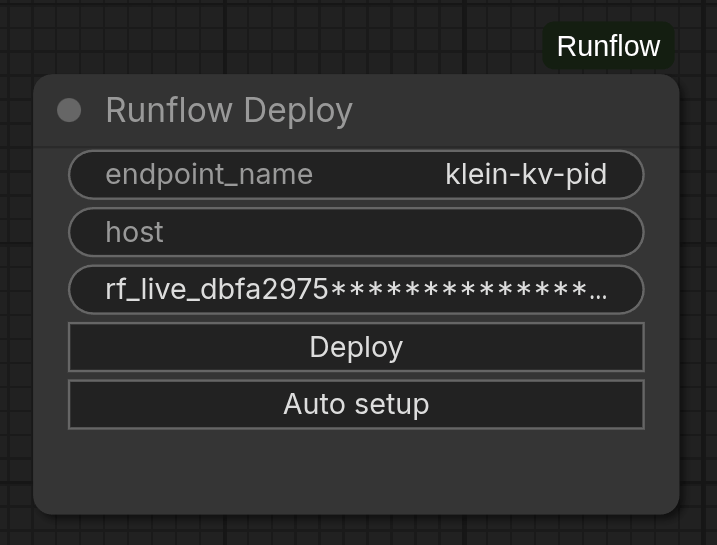
The Runflow Deploy node, with its endpoint_name, host, and api_key widgets above the Deploy and Auto setup buttons. The api_key widget is a plain text field with no masking; the key shown here is redacted in the screenshot. Leave it blank for normal use and rely on the global Settings.
alert() with the underlying error (missing API key, missing scopes, slug validation, HTTP failure, etc.) and the button returns to Deploy. The HTTP response is the terminal state; there is no separate deployment job to poll.
On success, open the workflow in app.runflow.io, test it in the playground, inspect the graph the platform recorded, and adjust any settings exposed by your Runflow Input nodes.
Call the deployed workflow
Dispatch a run against your workflow’s canonicalyour-org/your-endpoint path, where your-org is your organization slug (visible at the top of the dashboard, derived from the API key) and your-endpoint is what endpoint_name slugified to. The request body uses the same shape as a model run. The example below assumes a workflow with three Runflow Input nodes (input_id set to prompt, width, height); replace those keys with whatever input_id you set on your own input nodes.
callback_url to poll GET /v1/runs/{id} instead. See Runs for the lifecycle, Callbacks + Verify callback signatures for the async pattern, and the JavaScript SDK guide for a typed client. Invocations bill against the calling key like any other model run.
What you get back
The completed run’soutput carries kind: "comfyui_outputs" and an outputs array — one entry per emitted artifact file, each labeled by the output_id of the Runflow Output node that produced it. A node that emits several files (a batch) yields several entries sharing one output_id:
url is presigned and time-limited. Iterate the whole array — group by output_id when you need per-node outputs — and download or re-upload outputs to your own storage on receipt.
Billing & GPU pricing
Deployed ComfyUI workflows bill per second of GPU wall-time: from the moment the worker boots the container for your run to the moment it returns the result. Idle workers cost nothing (the platform scales to zero between runs); cold starts on a new GPU type are billed alongside the run.What you pay per second
Rates are per GPU second and depend on which GPU your run lands on. The current authoritative rate card lives at runflow.io/pricing; check there before sizing a budget. Rates apply uniformly across runs from any caller (your API key, the playground, embedded Studio). To estimate a specific workflow, run it once and read the cost and GPU seconds back from the run record (see What the run record shows).Picking a GPU
GPU selection is set on the workflow, not per run. Each ComfyUI workflow carries agpu_mode of either:
auto(default): the platform routes each run to the cheapest GPU that fits the workflow’s memory footprint. Use this unless you have a specific reason.explicit: the workflow is pinned to a chosen set of GPU models ingpu_explicit_models[]. Use this when a workflow needs guaranteed VRAM or a known fast path.
gpu_mode via PATCH /v1/comfyui-workflows/{id} (workflow owner only); changing the specific GPU set an explicit workflow is pinned to is done by redeploying. Once a workflow is explicit, every run uses that GPU set regardless of caller.
Scale-to-zero behavior
The platform keeps a deployed workflow’s worker warm only while runs are arriving. After a short idle window the worker spins down and the next run pays a cold-start cost (typically 10-40s of GPU time depending on the model weights). For latency-sensitive workloads, send a warming run on a schedule, or keep the playground open during a session.What the run record shows
GET /v1/runs/{id} returns billing metrics for completed ComfyUI runs (GPU model used and GPU seconds consumed). The webhook delivery payload does not carry them — it has the run’s status, output, and duration_ms — so read cost and GPU seconds from GET /v1/runs/{id}. To attribute spend per pipeline, set a metadata object at run creation; it is echoed back on both the webhook and the run record.
Define the external schema with Runflow Input / Output nodes
The plugin ships typed input and output nodes that declare the deployed API surface. Wire them into your workflow; everything else stays an internal implementation detail.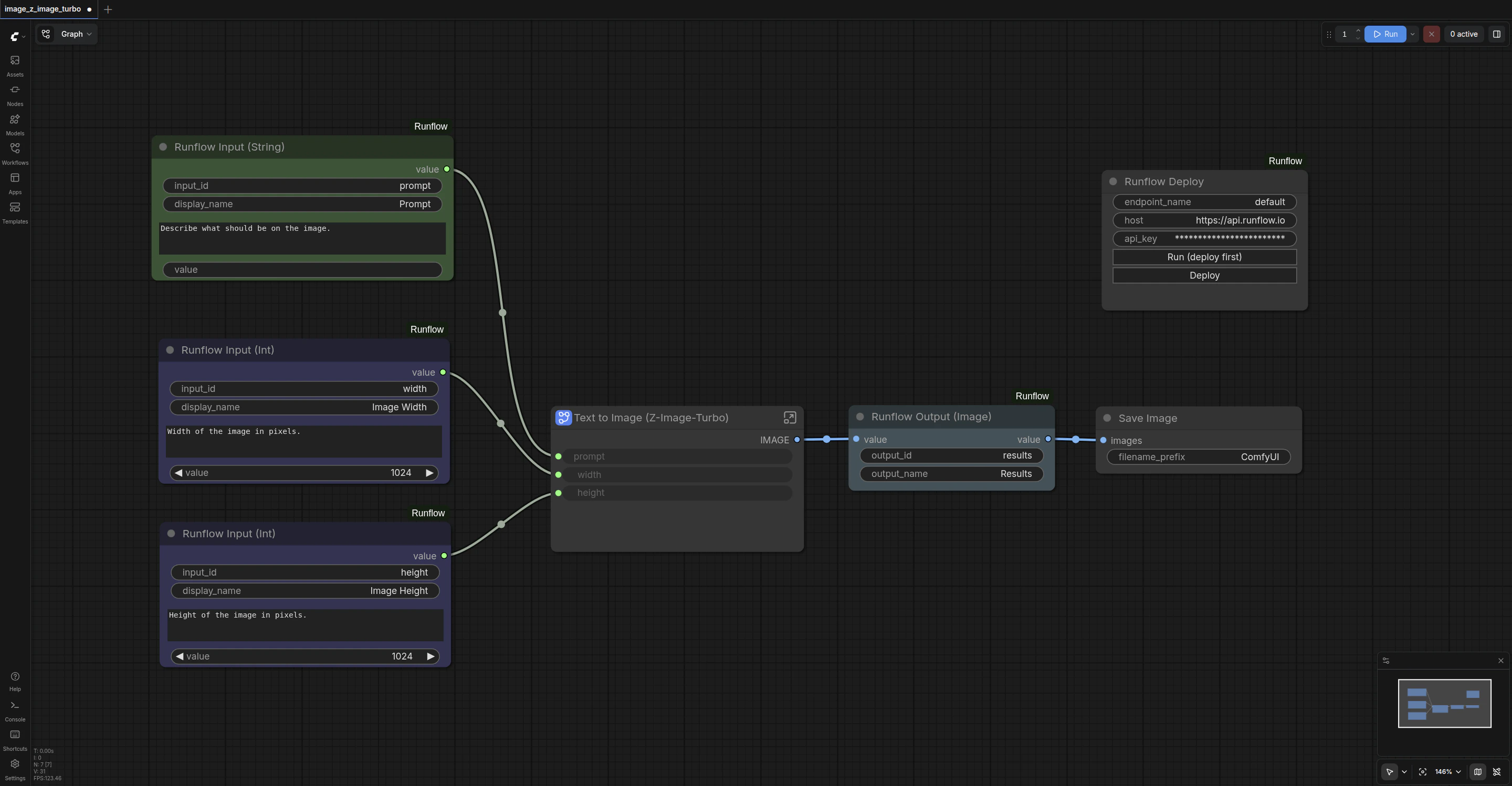
A workflow wired with Runflow Input (String) and Input (Int) nodes feeding an image-generation step, with a Runflow Output (Image) downstream and the Runflow Deploy node in the corner.
input_id (the stable join key the deployed API uses; never mutated at deploy time), display_name (label shown in the playground), description (help text). Each output has output_id and output_name; Runflow Output (File) additionally takes the file path on its forced value socket. Change input_id and output_id to something meaningful in your workflow; two inputs of the same type with the default ids will collide.
Locally these nodes are pure pass-throughs of the value socket. At deploy time, the Runflow inference service rewrites each input’s upstream to inject the caller-supplied value and maps each output node id to its output_id so the callable API returns a stable, named set of artifacts.
Encoder bridges
On a recent ComfyUI (one exposing thecomfy_api.latest module), the plugin also registers a Runflow/Save family. Each one encodes a native ComfyUI socket to a file under output/ and emits the relative filename on a STRING socket, ready to wire straight into a Runflow Output (File) node. On older installs these nodes are skipped at load with a single warning, and the rest of the plugin still works.
Auto setup
Directly below Deploy on the same node, the Auto setup button installs every custom node and downloads every model the active workflow references. Useful when you load someone else’s workflow and want to skip chasing dependencies by hand. It is also the worst possible button to click on a workflow you do not trust (see the warning at the top of the page). Clicking the button opens a modal with two checkboxes (Install missing custom nodes, Download missing models) and a Start button.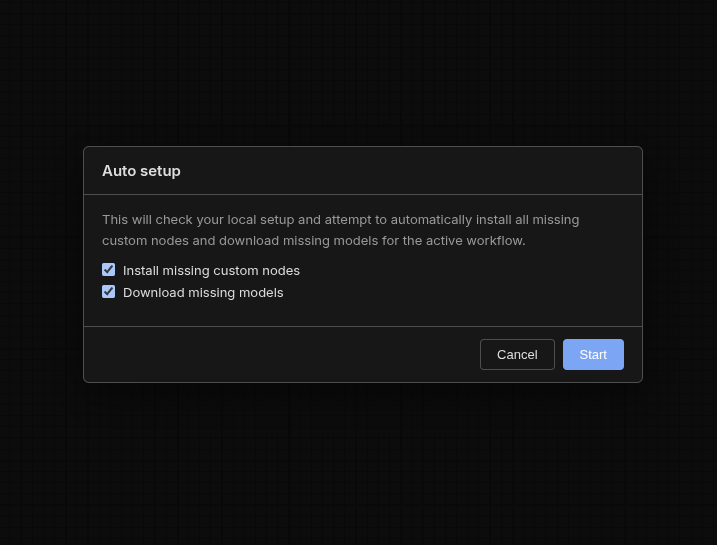
The Auto setup modal: pick whether to install missing custom nodes, download missing models, or both, then click Start.
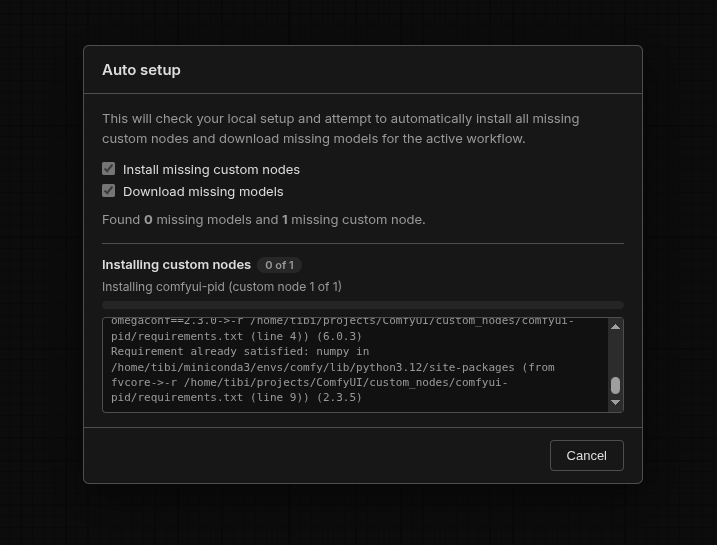
Auto setup in progress: a summary of how many models and custom nodes are missing, per-item progress bars, and a live log of the running pip install.
git clone --depth=1 plus git fetch --depth=1 origin <sha> plus git checkout <sha> (with a full-clone fallback if the host disables SHA-targeted fetches), then python -m pip install -r requirements.txt if the cloned repo carries one. Works on Linux, macOS, and Windows.
Workflows can also declare model-download URLs in properties.models[].url. The deploy worker fetches those server-side before running the workflow. A hostile URL there is a server-side problem the platform mitigates, but review the URLs before deploying a community workflow; the dashboard surfaces the recorded graph after deploy if you want to double-check.
The Runflow settings panel
Everything the plugin stores on your machine lives under ComfyUI Settings → Runflow, split into two groups: Connection and Authentication. None of these values are ever written into a workflow file.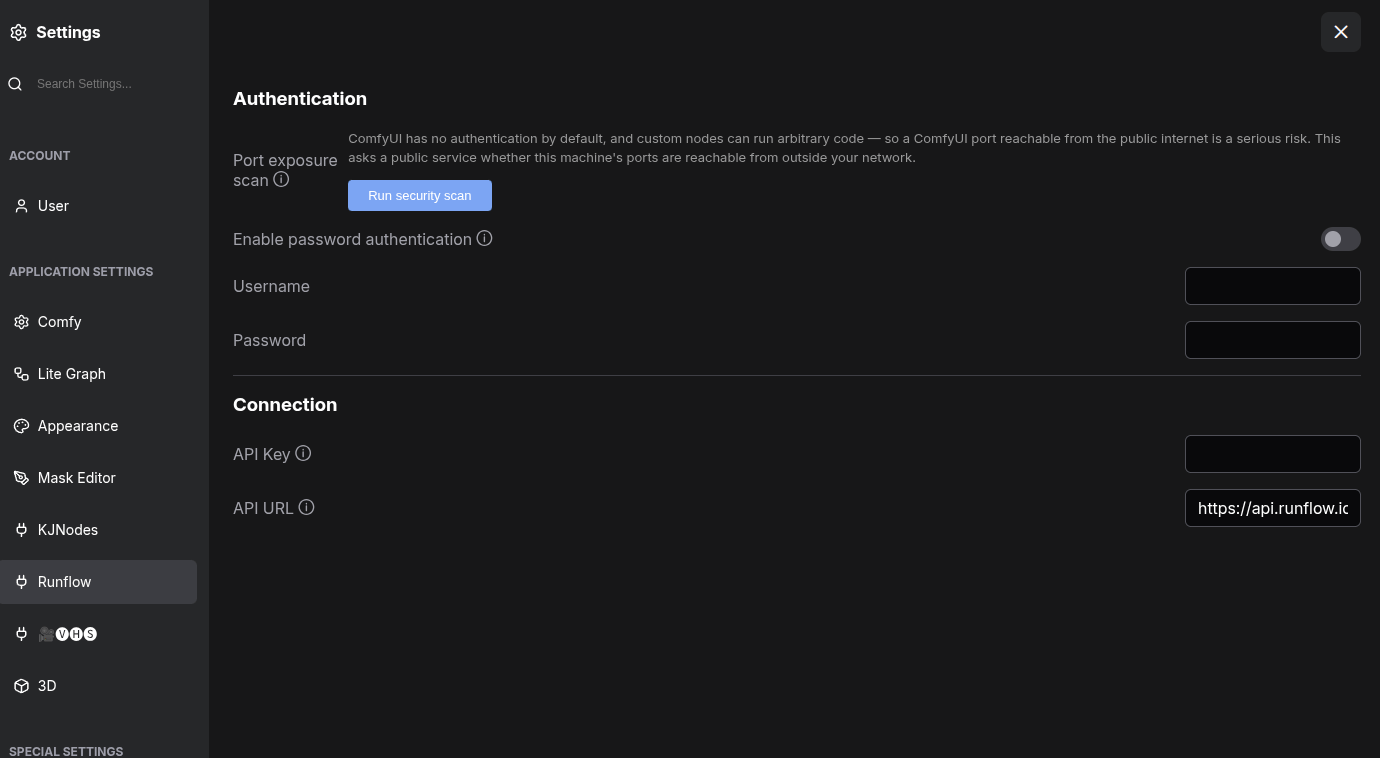
The Runflow settings panel: the Authentication group (port exposure scan and password authentication) above the Connection group (API key and API URL).
Connection
The two fields the Deploy button reads, both covered in Step 2:Authentication
ComfyUI ships no authentication by default, and custom nodes can run arbitrary code on the host. A ComfyUI port reachable from the public internet is therefore a serious risk: anyone who finds it can execute code on your machine. This group helps you detect and close that exposure.Port exposure scan
Click Run security scan to check whether this machine is reachable from outside your network:- It reports ComfyUI’s listen binding, read locally from its
--listen/--portargs. Binding to0.0.0.0/::(all interfaces) is flagged in red;127.0.0.1(local only) is green. - It looks up your public IP, then asks the third-party service portchecker.io whether your ComfyUI port (plus
80,8080,443) is reachable from the internet, showing each port as OPEN or closed.
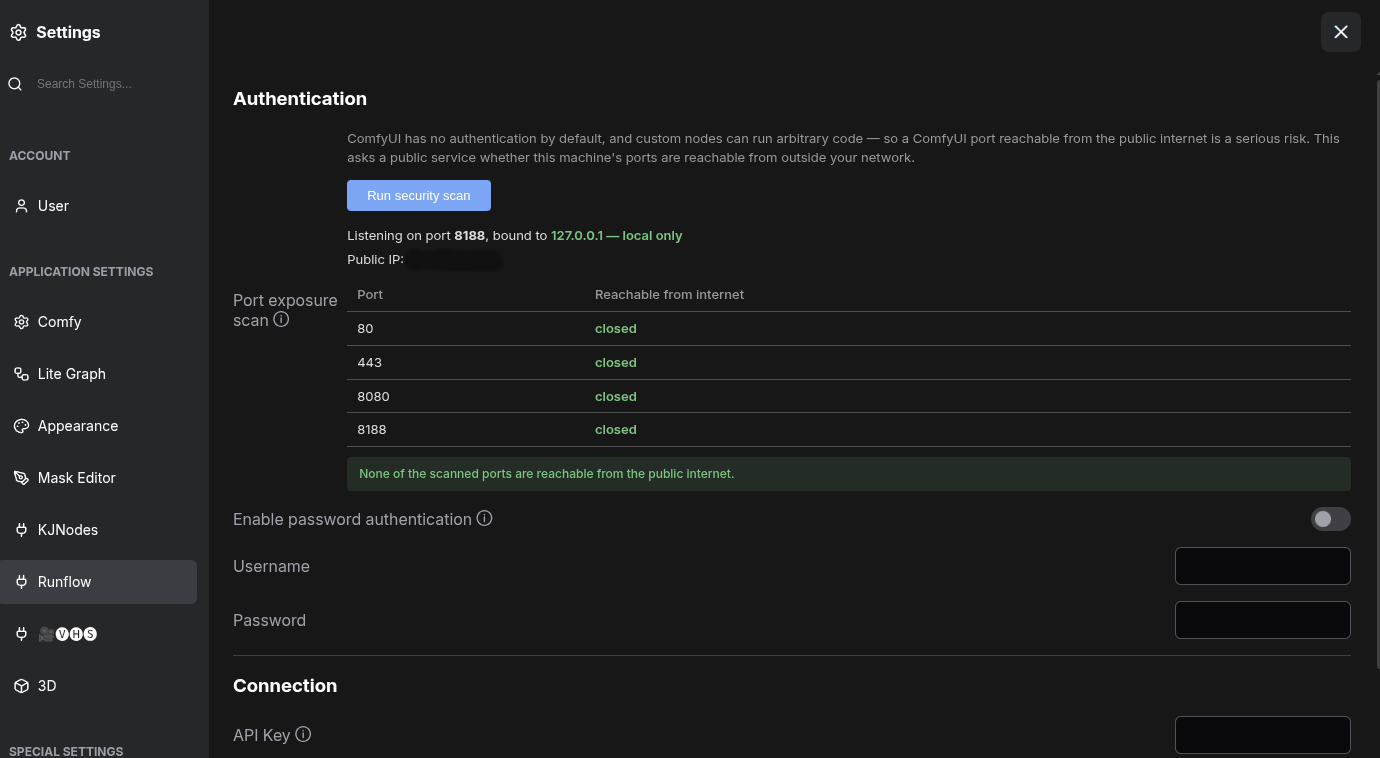
A completed port exposure scan: ComfyUI bound to 127.0.0.1 (local only) with every probed port closed from the internet.
Troubleshooting
- No
Runflowcategory in the node picker. ComfyUI loaded before the plugin was on disk, the plugin landed in the wrongcustom_nodes/directory, or you only refreshed the browser tab. Confirm the path, then fully restart the ComfyUI server process. - Clicking Deploy raises an alert about an unconfigured key or URL. Either
Runflow.ApiKeyis blank in Settings (and the node’sapi_keywidget is also blank), orRunflow.ApiUrlwas cleared. Save the key under Settings and click Deploy again. Deployreturns401 Unauthorized. The key is missing or revoked. Reissue and re-save under Settings.Deployraises alookup failedor403 Forbiddenalert on redeploy. Deploy first GETs the existing slug, then PATCHes it. A key withcomfyui-workflows:createbut no:readfails at the lookup withlookup failed; a key with:readbut no:editfails at the PATCH with403. Reissue with all three ofread,create,editfor iterative deploys.Deployalerts thatendpoint_namemust be URL-safe. The slug came out empty after stripping characters outsidea-z,0-9,-,_. Pick a name with at least one allowed character.- A workflow that runs locally fails on Runflow. Local-only models or custom nodes are not on the worker. Click Auto setup locally first to confirm the workflow resolves (only on workflows you trust). Models declared via
properties.modelsURLs deploy without needing a local copy; widget-selected models must exist locally or carry a URL fallback. - The endpoint slug changed unexpectedly. Renaming
endpoint_namecreates a new slug. To replace an existing endpoint, keep the same name and rely oncomfyui-workflows:edit.